

CHIEF EXPERTS
PRACTICAL CHIEF ARCHITECT WORKFLOWS
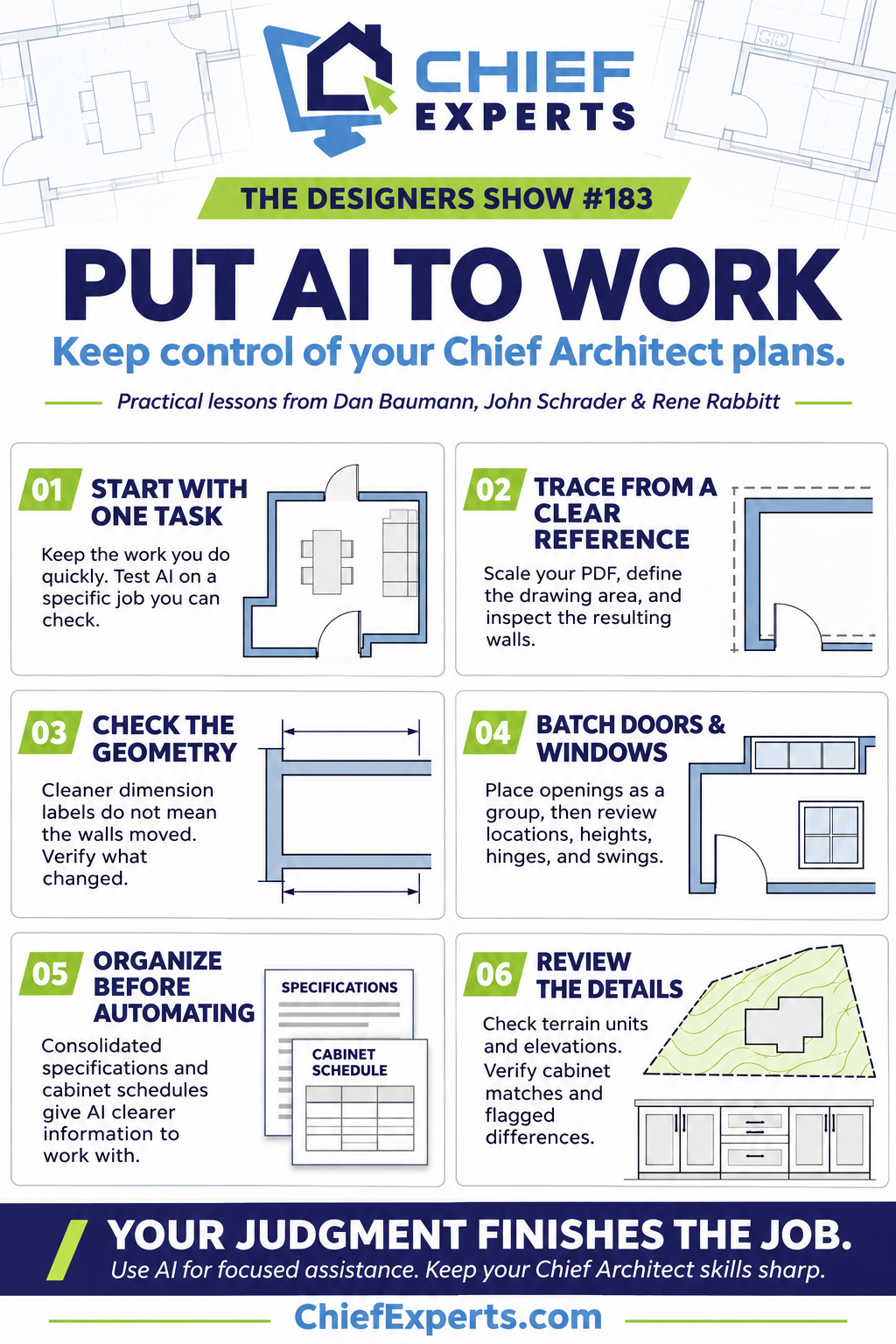
When you know Chief Architect well, you already have a rhythm. You draw walls, dimension as you go, check ceiling heights, and make adjustments almost without thinking about which tool comes next. Any new technology has to earn its place in that process.
AI is no exception. Having it draw something is interesting. Having it complete a useful part of your work, with results you can check and build on, is where it starts to matter.
The opportunity reaches beyond creating renderings. Floor plan tracing, door and window placement, specification updates, terrain information, and cabinet order preparation all offer possibilities. Each also raises the same practical question: how much work is actually finished when AI says it is done?
A productive Chief Architect AI workflow starts with a clear assignment and leaves room for your judgment. The following lessons help you decide what to hand over, what to inspect, and what to keep doing yourself.
01 / WORKFLOW LESSON
Give AI a Specific Job Within Your Workflow
Asking AI to handle an entire plan leaves a lot for it to interpret. Walls, openings, dimensions, room labels, and other details become part of one broad assignment. When something comes back wrong, you have more to untangle.
A smaller task gives you a clearer result to evaluate. If you draw walls quickly, keep drawing them. Establish the wall types, dimensions, and ceiling heights you want, then consider handing off door and window placement.
That division of work respects what you already do well. You remain involved in developing the model, while AI takes on an identifiable portion of the process.
Chief Architect’s experimental MCP connection provides a way for an AI application to perform supported actions inside the software. MCP means Model Context Protocol. The useful distinction is that AI can work with supported drawing operations, beyond simply discussing an image of your plan.
That connection creates possibilities, but it does not decide which assignment makes sense for your project. Start with work you understand well enough to review. A clearly defined task gives you a much better basis for judging whether the assistance is useful.
02 / WORKFLOW LESSON
Prepare the Reference Before Asking AI to Trace It
Floor plan tracing is an appealing place to experiment, especially when you have an existing image or PDF to recreate. However, an image that looks understandable to you can still leave room for interpretation.
A drawing with room sizes is different from a fully dimensioned reference. AI may reproduce the general arrangement while getting a closet position, railing, or wall location wrong. The result can look familiar before it is accurate enough to continue developing.
One approach worth testing is to place the reference directly in Chief Architect and scale it before assigning the tracing work. Point-to-Point Resize allows you to use a known dimension to establish the PDF’s scale.
Also identify where the work belongs. Specify the active tab and the drawing area rather than leaving AI to choose a location or create a separate project.
This preparation gives the task a defined reference, scale, and workspace. It also gives you something concrete to compare against when the tracing is finished. Treat that first result as drawing work to inspect, with particular attention to the walls and details that establish the rest of the model.
03 / WORKFLOW LESSON
Tell AI Whether You Want to Change the Model or Its Appearance
A request to remove fractional dimensions sounds simple. Yet there are two very different ways to make those fractions disappear: move the walls to change the measurements, or adjust the dimension display so the fractions are no longer shown.
Both can produce cleaner-looking dimensions. Only one changes the geometry.
This is an easy place to confuse a satisfactory appearance with a completed task. If your intention is to adjust the model, say which objects need to move and what measurements you want. If you only want different dimension formatting, identify that as the assignment.
The same care applies to the scope of the work. AI may add dimensions or make other changes you did not ask for. Include the boundaries of the task in your instructions, then inspect whether it stayed within them.
You can also ask AI to help write the instructions before it begins. Describe the outcome, review its proposed approach, and correct misunderstandings early. That gives you a chance to catch a formatting solution when what you actually need is a change to the plan.
04 / WORKFLOW LESSON
Use Batch Placement, Then Make the Simple Corrections Yourself
Door and window placement provides a useful example of how to divide a task further. Initial placement and final adjustment do not have to be handled in exactly the same way.
AI can be instructed to place a group of openings, then review the results. That changes the process from placing and checking each object individually to completing a batch before inspecting it.
Once the openings are in place, you have a natural point to step in. Check locations and review door swings, hinge sides, and window heights. If flipping a few swings takes you only a moment, there may be little value in waiting for AI to perform those corrections.
The important measure is the time and attention required to reach a usable result. A process that includes a short manual cleanup can still be useful. A process that makes you wait through lengthy corrections to simple details may be less attractive.
Give yourself permission to take over when your own tools are faster. The goal is a completed drawing you understand, and there is no requirement to have AI perform every action within an assignment.
05 / WORKFLOW LESSON
Consider What You Can Do While AI Is Working
Elapsed time tells only part of the story. A task that takes several minutes may still be worthwhile if it runs in the background while you handle email or work in another application.
Working through MCP can make that arrangement possible. It differs from a setup where AI takes direct control of the computer and interrupts your ability to use it.
The distinction matters when you define permissions and instructions. Decide whether the intended workflow is limited to supported MCP operations or allows other forms of computer control when those operations are insufficient.
Early experimentation also exposed limitations, including object deletion. One workaround involved moving unwanted objects away from the drawing area so they could be deleted manually. That is a useful reminder that a task may still end with a handoff to you.
Before assigning background work, know what completion will look like. You need to be able to return, identify what changed, and finish any remaining corrections. Time away from the task is valuable when the result is understandable and manageable when you come back.
06 / WORKFLOW LESSON
Organize Specifications So They Are Easier to Update
Some useful AI work involves information already in your drawings. Specification notes, project information, and repeated text deserve attention alongside the more visible drawing tasks.
Consider how that information is organized. Updating content scattered across separate CAD details creates a different assignment from updating a consolidated set of text macros.
A macro-based specification system can make it possible to export the information together, work through it as one file, and bring the updated content back into the workflow. The approach discussed for this involved text macro management and a replacement JSON file.
The broader lesson is about preparation: an organized template gives AI a clearer body of information to process. It also makes the intended scope of an update easier for you to understand.
Plan review offers another application. An exported plan PDF can become the basis for a list of questions or items to revisit. After spending days inside the same project, that additional pass may help direct your attention to something you overlooked.
Keep the output tied to review. Suggested changes and flagged items still need to be evaluated in the context of your project before they become part of the finished documents.
07 / WORKFLOW LESSON
Check Terrain Data Beyond How It Looks on the Screen
AI-assisted terrain preparation can involve assembling parcel and topographic information into a DXF file for import into Chief Architect. The work may include a closed parcel boundary and contour lines organized for the import process.
The useful lesson is that obtaining the file is only part of the task. Units, layer mapping, and elevation data all affect what happens next.
A mismatch between feet and inches changes the scale. Contour lines that appear in the drawing may still need attention before they function as the intended terrain elevation data. A recognizable parcel outline does not resolve either issue.
Controlling detail is another consideration. Limiting the number of segments in topographic lines was used to keep the information from becoming unnecessarily complex. The intended balance was enough detail for the task without an excessive amount of terrain data.
Property identification also needs a direct check. Supplying the right address does not prevent AI from returning information associated with a neighboring lot.
Before continuing, confirm that you have the intended property, the correct units, and usable elevation information. A visually convincing import is a starting point for inspection, not the end of the terrain work.
08 / WORKFLOW LESSON
Make Cabinet Matches Easy to Review
Cabinet order preparation shows why the ability to inspect AI’s work matters as much as the initial output.
One experimental approach begins with cabinet information in Chief Architect, uses a macro and custom object field to report it to a schedule, and exports that schedule as a CSV file. Additional instructions then help match that information to a cabinet vendor’s products.
The valuable part is more than a suggested order. Links to the matched products let you examine where each selection came from. Flags for differences or multiple possible matches identify items that need closer attention.
A four-drawer base, for example, may have more than one possible match. Having AI assemble the information can help with preparation, while the link and discrepancy notes give you a way to judge its selection.
This workflow was still being tested by users familiar with cabinet ordering. It belongs in the category of promising assistance that needs informed review.
If you explore something similar, pay attention to whether the output makes uncertainty visible. An order preparation tool is more useful when it helps you find questionable matches than when it simply presents every selection as settled.
09 / WORKFLOW LESSON
Reuse Good Instructions for Work You Repeat
As you experiment, some instructions will produce clearer results than others. Keep the ones that describe your working methods accurately.
That may include where to draw, which reference to use, when to inspect a batch of objects, or which operations to leave for you. Reusable instructions give those decisions a place in the process instead of making you explain them from scratch each time.
Scripts offer another possibility for recurring work. Rather than having AI reason through the same complex action repeatedly, a defined script can give it something specific to run when that task comes up. Applying a style palette was one example raised in this context.
The point is to capture a useful process once you understand it. Start with an assignment, observe what happens, and refine the instructions around the results you actually need.
Also recognize when a prompt needs clarification rather than more repetition. A rough garage sketch can be interpreted with windows where you intended a garage door. When the interpretation is wrong, identify the misunderstood element and correct the assignment before asking for more work based on it.
10 / KEEP LEARNING
Keep Building the Chief Architect Skills That Save You Time
Knowing Chief Architect well makes it easier to use AI selectively. You can recognize when a result is wrong, decide how to correct it, and judge whether automation is helping.
Hotkeys, room-naming shortcuts, templates, and macros remain valuable. If a familiar action takes you seconds, assigning it to AI may add unnecessary back-and-forth. More demanding work also deserves realistic expectations; roofs were identified as an area where early results were weak.
Choose one defined task to test within a workflow you already understand. Review what was completed, what needed correction, and whether the combination was useful. Let that experience guide the next assignment.
For help developing those skills, explore Chief Experts Pro Academy. Chief Architect workflows, practical questions, and ways to use AI for faster, more detailed plans are part of the learning conversation.
Your experience gives you the basis for deciding where these tools belong. Use it to set the assignment, recognize the limits, and finish the details. A good AI workflow leaves you with useful work completed and a clear understanding of the plan you are responsible for delivering.
CHIEF EXPERTS | CHIEF ARCHITECT TRAINING