
Chief Architect AI Rendering: Turning Designs Into Renderings and Videos | Designers Show 179
Aug 25, 2026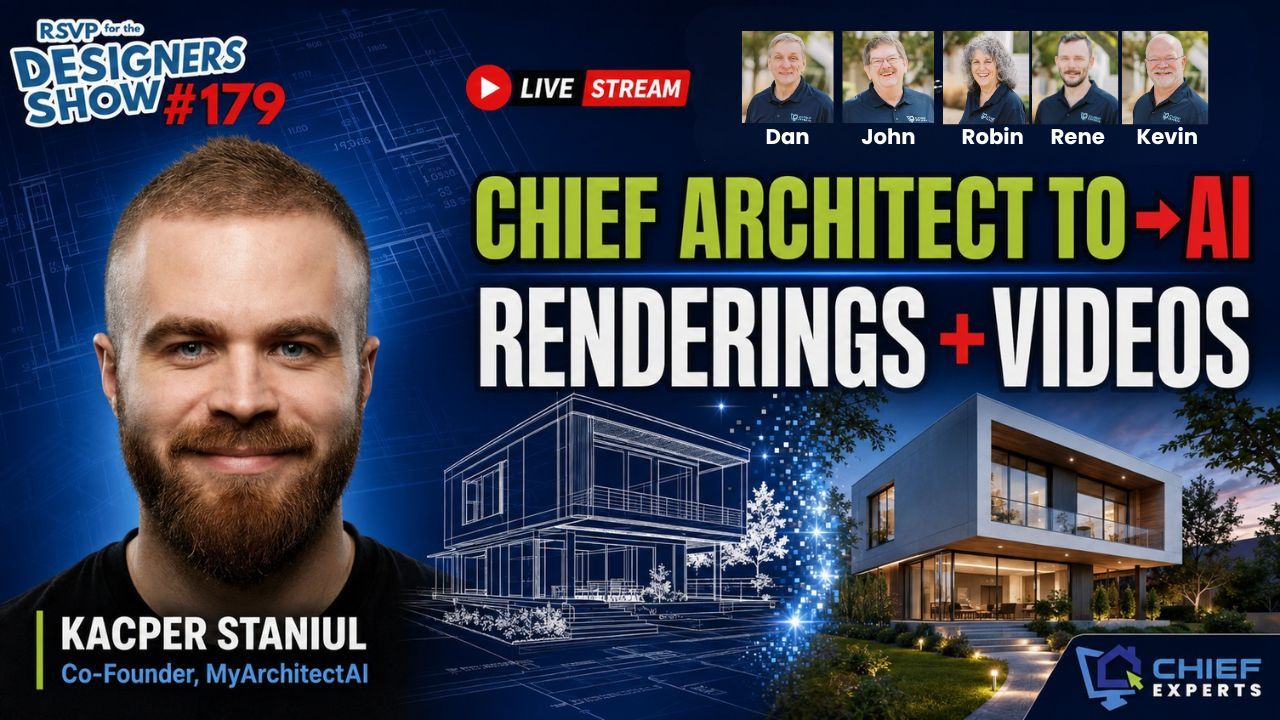
If you're using Chief Architect every day, you already know how much better a client responds when they can actually see the project.
Plans are important. Elevations are important. But put a good rendering in front of a client and the conversation changes.
Now AI is giving Chief Architect users another way to take those designs further, without having to become an expert in complicated rendering software.
That was the focus of the latest Designers Show by Chief Experts. Dan Baumann, founder of Chief Experts and a longtime Chief Architect trainer and coach, was joined by co-hosts John Schrader, a Chief Experts coach and experienced design and construction professional, and Rene Rabbitt of Rabbitt Design, a Chief Architect expert known for his advanced rendering and visualization work.
Their guest was Kacper Staniul, co-founder of MyArchitectAI, an AI rendering platform built for architecture and interior design.
Dan had already been experimenting with MyArchitectAI before the show and putting some of the results in front of clients.
The group spent the episode finding out.
What Can AI Rendering Actually Do With a Chief Architect Design?
This wasn't a discussion about replacing Chief Architect.
That's an important distinction.
The design still starts in Chief. You build the model, make the design decisions, establish the camera view, add materials and create the project the way you normally would.
MyArchitectAI comes in after that.
Kacper demonstrated a workflow that starts by uploading an image from a 3D modeling program. The platform isn't limited to Chief Architect, but for this episode, Chief was obviously the focus.
From there, the basic workflow includes four tools:
For Chief users, that's where this gets interesting.
You're not starting over in another piece of design software. You're taking work you've already done and seeing how far AI can push the presentation.
Start Simple. Don't Overthink the Prompt.
If you've played with AI before, you've probably run into prompts.
And if you haven't, a prompt is simply the direction you're giving the AI about what you want it to create.
Dan brought this up during the show because prompt writing can sound more complicated than it needs to be.
Kacper's advice was to start simple.
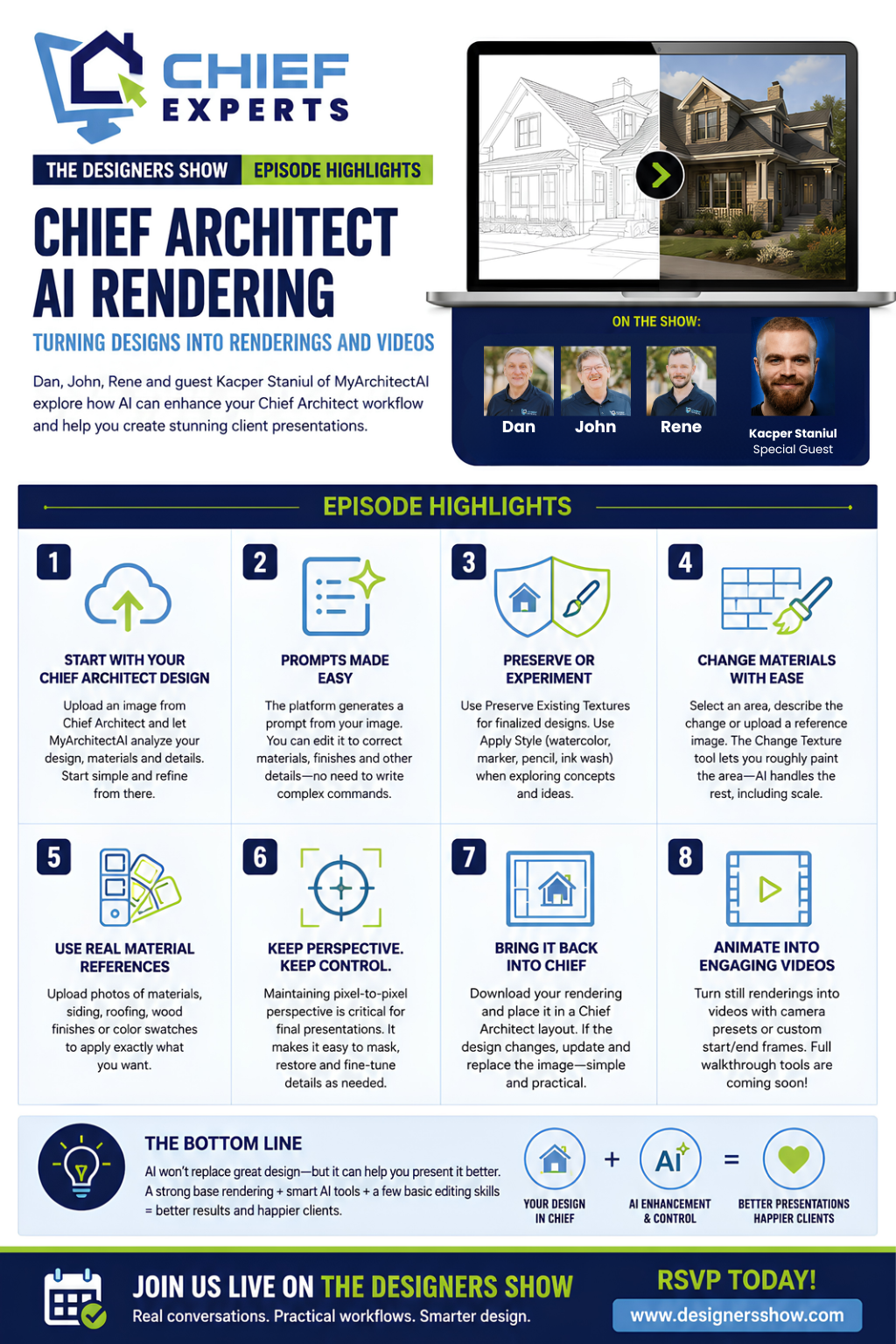
Upload the Chief Architect image and let MyArchitectAI analyze what's already there. The software can generate a description based on what it sees in the design.
Then look at the result.
If it gets something wrong, that's when you give it more direction.
Maybe the roof should be light gray instead of dark charcoal. Maybe a material isn't being interpreted correctly. Instead of trying to write a giant paragraph explaining everything before you start, make the adjustment after you see what the AI gives you.
The practical takeaway: don't spend ten minutes trying to write the perfect AI prompt before you've even seen what the software can do with the Chief model you've already created.
Preserve the Chief Architect Design or Experiment With It
One of the biggest questions for a Chief user is how much the AI is going to change the original design.
Sometimes that's exactly what you want.
Sometimes it absolutely isn't.
MyArchitectAI gives users different ways to approach that.
If you've already spent time in Chief Architect selecting materials and getting the design where you want it, the Preserve Existing Textures option is intended to maintain more of what you've already created.
Kacper specifically recommended this approach when working with an established, textured design.
There's also an Apply Style option that's more useful when you're still kicking around ideas. That can take the design in more conceptual directions, including watercolor, marker, pencil and ink-wash styles.
That's a different use case.
If you're early in design and trying to explore a look with a client, changing things around can be useful.
If you've already made the decisions and you're trying to create the final presentation, you want the AI to behave itself.
Knowing which mode you're in matters.
Changing Materials Gets Interesting Fast
This is one of the areas that could have some immediate value for designers and remodelers.
During the demonstration, the group explored how materials and finishes could be changed without rebuilding the entire scene.
A user can select an area of the rendering and tell the AI what needs to change. You can also give it a reference image of the material you want.
Let's say you've already created the house in Chief and now you're working through finishes.
You can take a reference image, crop it so the material itself is clear, and use that as the reference for the selected part of the rendering.
Kacper pointed out that the crop matters. If you're trying to show the AI a particular material, don't give it an entire photograph full of unrelated information if you don't have to. Give it a clean look at what you actually want it to use.
The Change Texture tool also allows you to roughly paint over the area you want changed.
And "roughly" is the important part.
You don't necessarily have to spend a bunch of time perfectly tracing every edge. The AI interprets the selected area and attempts to apply the material where it belongs.
For Chief users who spend a lot of time helping clients visualize finish options, that's worth paying attention to.
A Better Base Rendering Still Gives You a Better Result
Here's where Rene brought an important dose of reality into the AI conversation.
If AI can make the rendering look better, why bother putting much effort into the original rendering in Chief?
Because the original still matters.
AI isn't perfect.
It might change a light fixture you wanted to keep. It could reinterpret a piece of artwork. It may decide that some little detail should look different than the actual design.
If you've got a strong original rendering from Chief Architect, you have something accurate to fall back on.
Rene's point was that a good base rendering gives you more control over the final result. If the AI improves 95% of the image but messes up one small area, you don't necessarily need to keep prompting it over and over hoping it finally gets that one thing right.
You can mask that area and bring the correct information back in.
Why Pixel-to-Pixel Perspective Matters
Rene also zeroed in on something that may not sound exciting until you actually start trying to use AI for finished client work: keeping the original perspective.
For Rene, that's a necessity when he's working on a final rendering.
If you feed an AI system your Chief Architect image and it starts changing the camera angle or shifting the perspective, fixing little details afterward becomes much harder.
When the perspective remains pixel-to-pixel with the original image, you have options.
You can combine the AI-enhanced rendering with the original Chief rendering. You can mask problem areas. You can put back an element that AI changed incorrectly.
Everything still lines up.
Rene made a distinction between that kind of final rendering work and early ideation.
If you're just trying to come up with ideas, speed may matter more than precision. Use whatever gets you there fastest.
But once you're creating the image you're actually going to show as a finished representation of the project, maintaining that perspective becomes much more important.
That's a practical distinction for anyone using Chief professionally.
You Can Bring the Finished Rendering Back Into Chief Architect
Dan also demonstrated how this can fit back into the Chief workflow.
Once an AI-enhanced rendering is finished, it can be downloaded and saved with the client's project files. From there, the image can be brought into the Chief Architect layout and used as part of the presentation.
There is one thing to keep in mind.
A regular Chief Architect camera can update as the model changes. An externally created rendering obviously doesn't know that you've moved a wall, changed a window or redesigned part of the project.
If the design changes, you'll need to update the rendering and relink or replace the image in the layout.
It's an extra step.
But it also means you don't have to completely change the way you organize your client presentation just because part of the visualization was created outside Chief.
Now Take That Rendering and Make It Move
The episode went beyond still renderings.
Kacper also demonstrated MyArchitectAI's animation tools, which can turn a still rendering into a short video.
Users can choose camera movements or describe the movement they want.
There's also an option to work with a starting frame and an ending frame.
That gives the AI more information about where the animation needs to go instead of simply asking it to invent everything between one static image and whatever it thinks should happen next.
For designers and remodelers, that opens up another presentation option.
Instead of sending a client only a still image, you can potentially create movement through or around the design.
Kacper also discussed a more complete walkthrough capability the MyArchitectAI team was developing, where multiple images from different areas of a project could be used to build a sequence.
That feature was still in development at the time of the show, so it's one to watch rather than something to build a workflow around today.
Sometimes the Fastest AI Fix Isn't AI
One of the better points in the conversation had very little to do with a particular feature.
Rene talked about knowing when to stop fighting with the AI.
You can spend a lot of time rewriting prompts trying to get one little object to look right.
Or you can fix it.
That might mean masking something. It might mean dropping an object into the image before rendering it again. It might mean doing a small amount of image editing instead of asking the AI for attempt number 17.
You don't need to become a Photoshop expert to do that.
Rene's point was that a handful of basic image-editing skills can make the entire AI workflow more useful because you're no longer dependent on the AI getting every single detail right.
AI can do a lot. Knowing when not to use it can save just as much time.
Where Does AI Fit for Chief Architect Users?
This is probably the question that matters most.
Chief Architect already gives designers and remodelers a powerful way to model a project, work through design decisions and show clients what they're getting.
So why add another tool?
Dan's interest in MyArchitectAI wasn't about replacing any of that.
It was about presentation.
Can you take the work you've already done in Chief and make it easier for a client to visualize the finished project?
Can you experiment with a material without spending forever rebuilding a rendering?
Can you turn a still image into something more engaging?
Can you get a higher-end presentation without learning an entirely separate professional rendering package?
A few years ago, some of what the group demonstrated would have required significantly more rendering knowledge and more complicated software.
That's changing quickly.
And for Chief Architect users, that's probably the part worth paying attention to.
Can AI help you present the project you've already designed more effectively?
Based on what Dan, John, Rene and Kacper demonstrated on the Designers Show, there are some pretty interesting possibilities.
The tools aren't perfect. Some features are still being developed. You'll still need to know what the finished design is supposed to look like, and you'll still need to catch the places where AI gets creative when you don't want it to.
But that's exactly why this fits the Chief Architect audience.
Now you've got another tool that may help you show it.
Join Us Live on The Designers Show
Want more real-world Chief Architect tips, demonstrations, workflows and conversations like this? Join Dan and the Chief Experts team live on The Designers Show.
RSVP FOR THE DESIGNERS SHOW